Release notes
🎛️ Decide Exactly Which Fields a Filter Matches
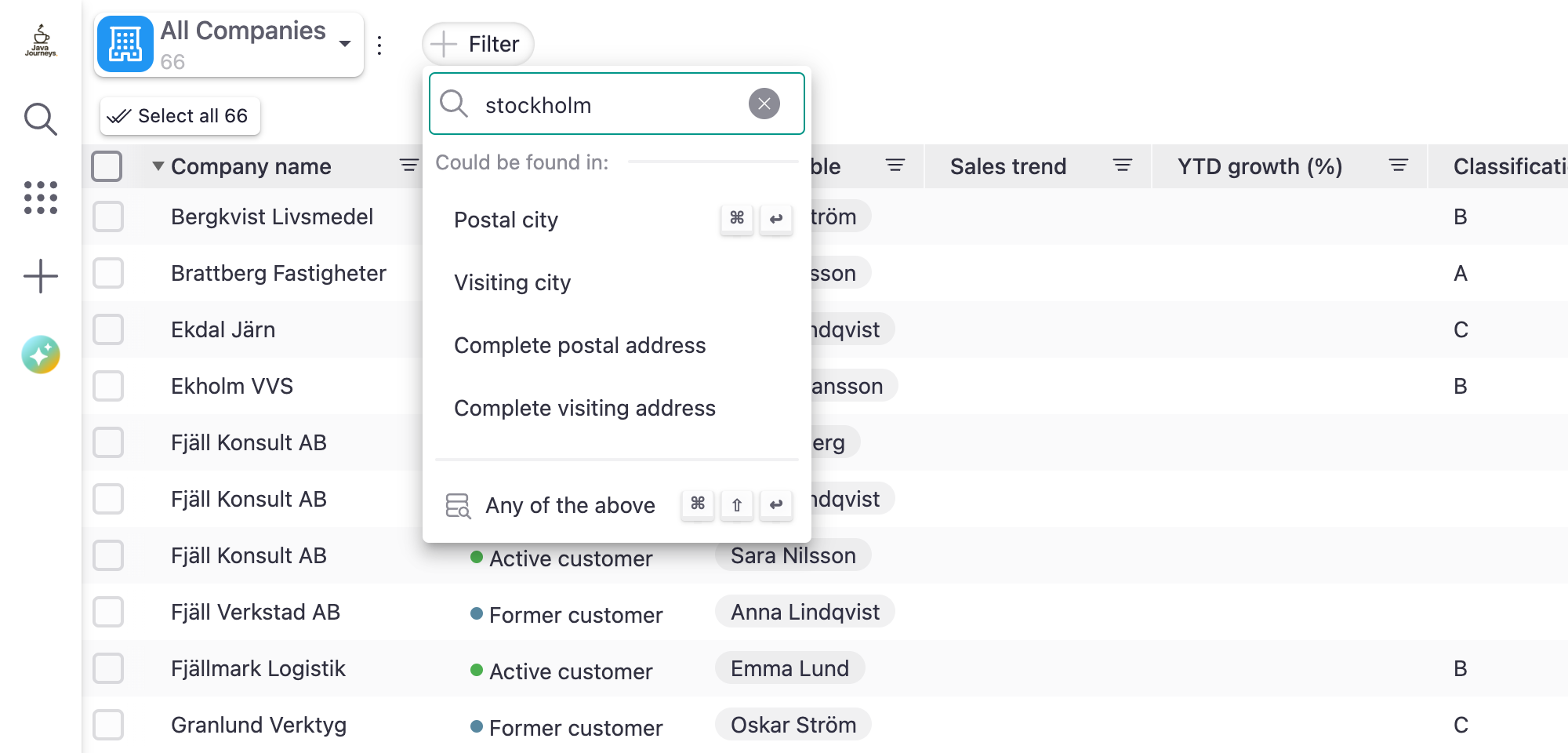
The search-looking field above table views is replaced by a Filter button. A filter is built only from the fields the user picks, so the rows that remain are the ones the user asked for. Before, a word was matched against every field that contained it, including fields not shown in the view.
What it does:
- Typing a word lists the fields where it occurs; the user picks one field, several or all of them.
- Cmd/Ctrl + Enter applies the top suggestion. Cmd/Ctrl + Shift + Enter applies the word to every matching field at once, as the old field did.
- Option fields can be filtered with Is not.
- The filters in use are shown as chips next to the button and can be changed or removed there.
How to enable:
Available to all users after the upgrade, nothing to set up.
Read more: Filters
🔗 See a Customer's Other Tickets, Contracts and Installations on the Card
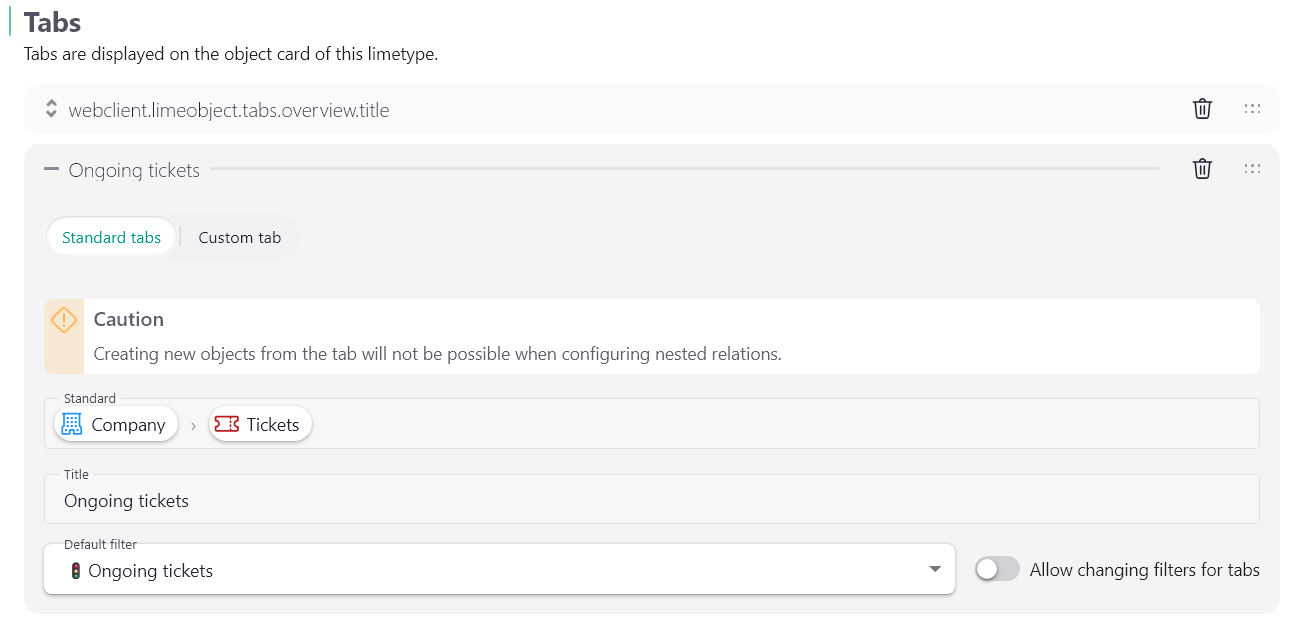
Administrators can add tabs to an object card that list objects two to five relations away, for example all open tickets of the company a ticket belongs to, or every installation a customer has through its contracts.
What it does:
- The tab picker in the card configuration lets the administrator follow a relation, then a relation on the related object, up to five steps.
- Each tab has a Title (a translation key can be used; without one, the tab is named after the path), a Default filter, and Allow changing filters for tabs to let users change the filter or keep it fixed.
- Existing tabs can also have a Default filter, for example a Persons tab that opens on active persons.
How to enable:
Available after the upgrade. Set up the tabs with the tab picker in the card configuration of the limetype in Lime Admin.
Read more: Deep Relations
🖼️ Recognise Companies and Colleagues by Logo and Photo
Companies show their logo and coworkers show their profile picture in search results, object headers, lists and relation pickers. Records without a picture show initials.
What it does:
- Company logos are taken from the website already saved on the company.
- Coworker photos are the profile pictures already stored in Lime CRM.
- Persons and companies without a picture show initials; other records show the icon of their limetype instead of a grey placeholder.
How to enable:
Available to all users after the upgrade, nothing to set up. The browser fetches each company logo from Google's favicon service (https://www.google.com/s2/favicons) with the company's domain. Where browsers cannot reach that address, companies show initials.
🔎 Find the Record You Search For
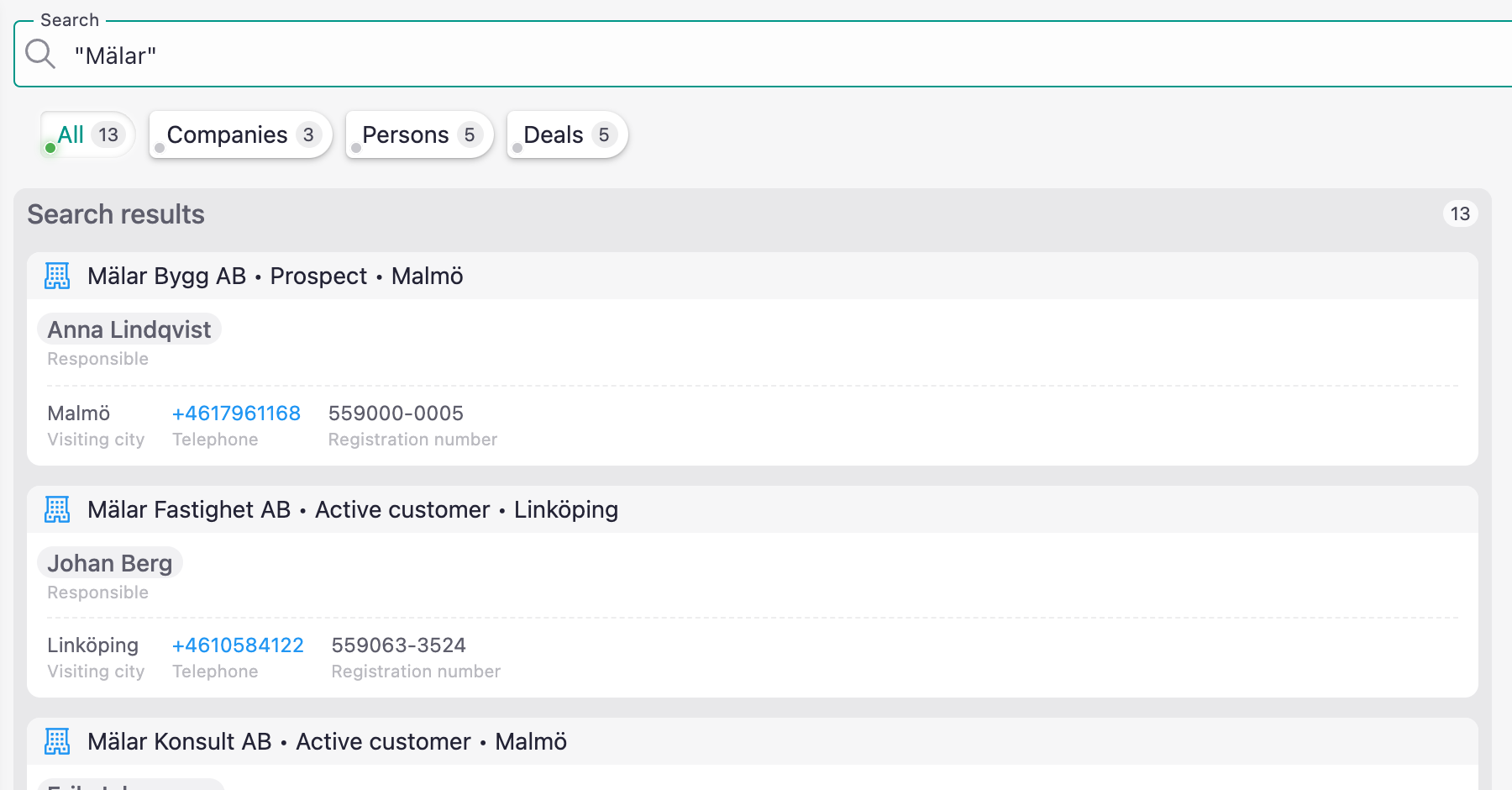
Global search can match words exactly, ranks results in a new way and can be narrowed to several limetypes at once. A search in quotes for an exact value, such as a property designation or an order number, returns that value instead of every record that starts with the same characters.
What it does:
- Words in quotes are matched as whole words, without prefix or fuzzy matching. A search for
"Vaksala-lunda 29:2"no longer findsVaksala-lunda 29:21, and"Mälar"finds Mälar Bygg AB but not Mälarstrand Förvaltning. Exact matching covers text fields, relations and option values. - Results are ranked with a new score calculation.
- The global search can be narrowed to more than one limetype.
How to enable:
Rebuild the search index of each application after the upgrade, outside working hours, since a reindex takes time and CPU:
Until the index has been rebuilt, exact matching covers text fields only, not relations and option values, and an application whose index is older than version 3 keeps the old ranking. The search keeps working during the reindex; the new index replaces the old one when it is finished.
Read more: Search indexer
📋 Add Screenshots to Notes by Pasting Them
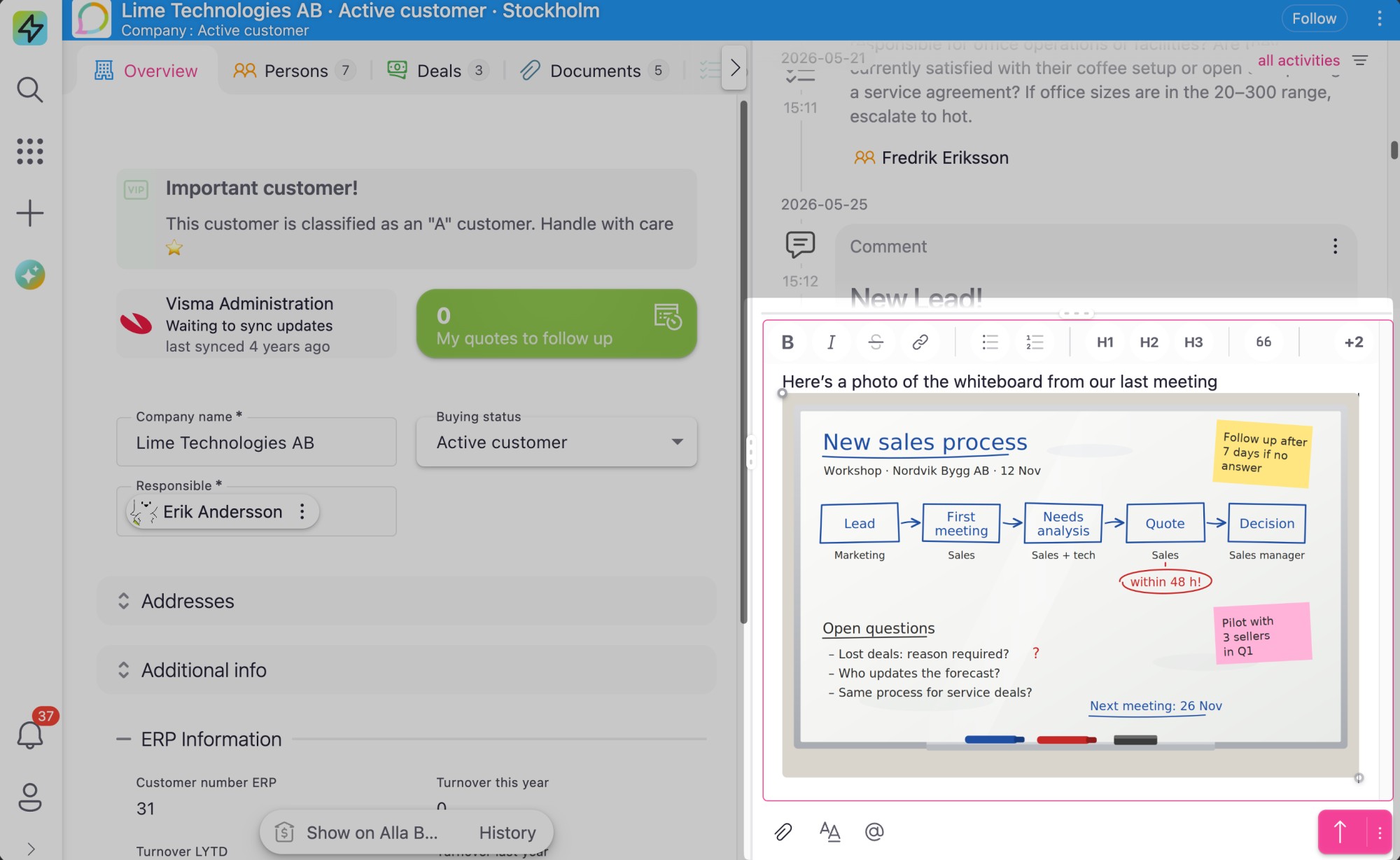
Users can paste an image, for example a screenshot, straight into a note in the activity feed. The image is placed where the cursor is.
What it does:
- Pasting works in the note editor of the activity feed without any setup.
- Administrators can allow it on other text fields on a card, such as a description or background field. Fields that are filtered on, grouped by, shown as a column or used in automations are better kept as plain text.
How to enable:
Available in notes after the upgrade. For another text field, open the card configuration in Lime Admin, replace the field with the web component limebb-text-editor and set the property:
🔔 Decide What Lime CRM Notifies About in One Place
Administrators choose what Lime CRM notifies about on one page in Lime Admin, with a section for each limetype that has an activity feed or a coworker field.
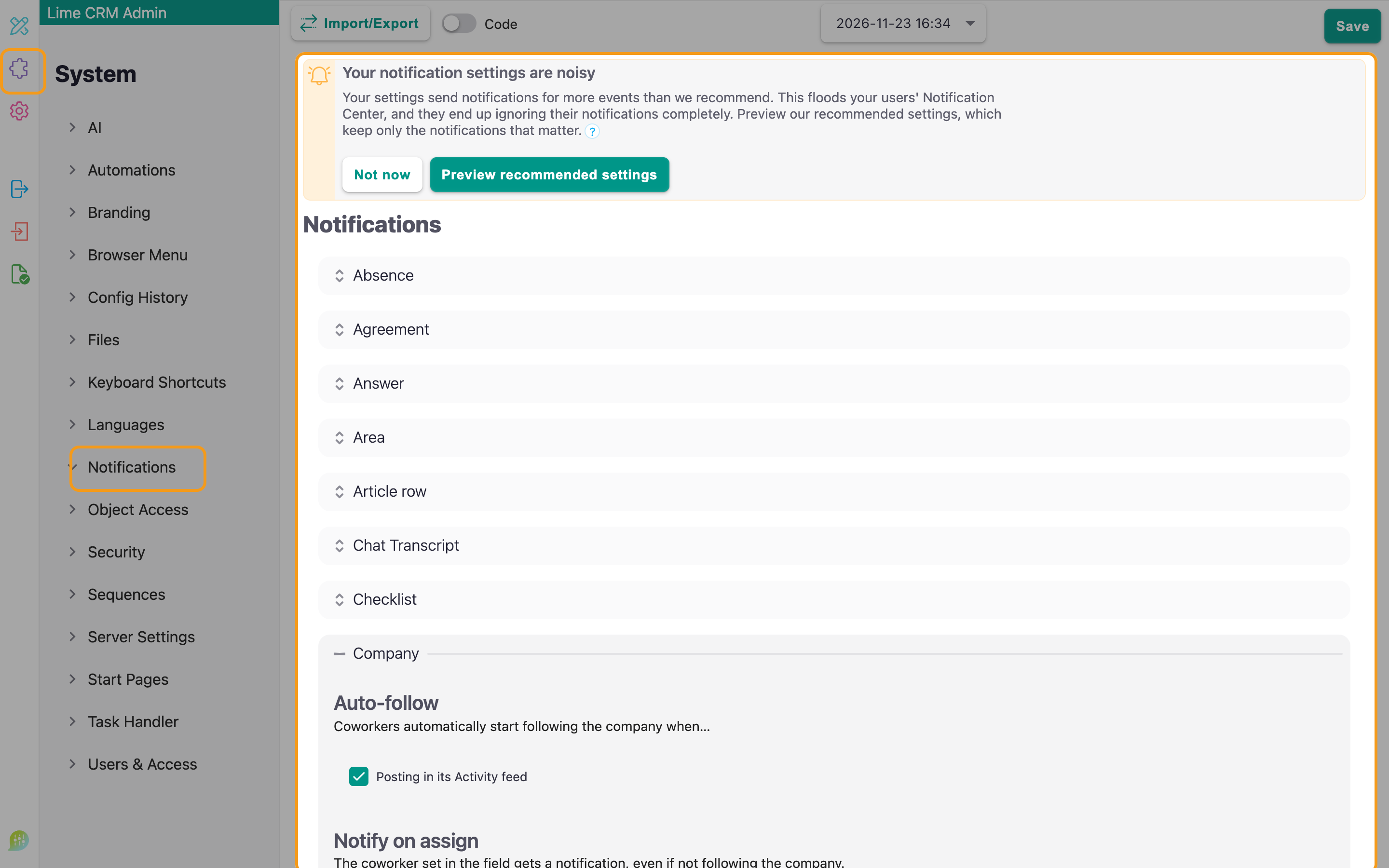
What it does:
- Auto-follow, Notify on assign, Notify followers about and Notify on mention are set per limetype in one place. The settings that were spread over several places before are moved onto the page.
- When the settings notify about more than recommended, the page offers Preview recommended settings, which fills in a quieter setup. Nothing is saved until the page is saved.
How to enable:
Available after the upgrade. Open Lime Admin, System > Notifications.
Read more: Notification settings
⚠️ See Which Fields Stop a Record from Being Saved
The Save button on a form stays enabled when the form is invalid. Pressing it shows every field that needs attention, also fields inside collapsed sections, and the tooltip says Cannot save.
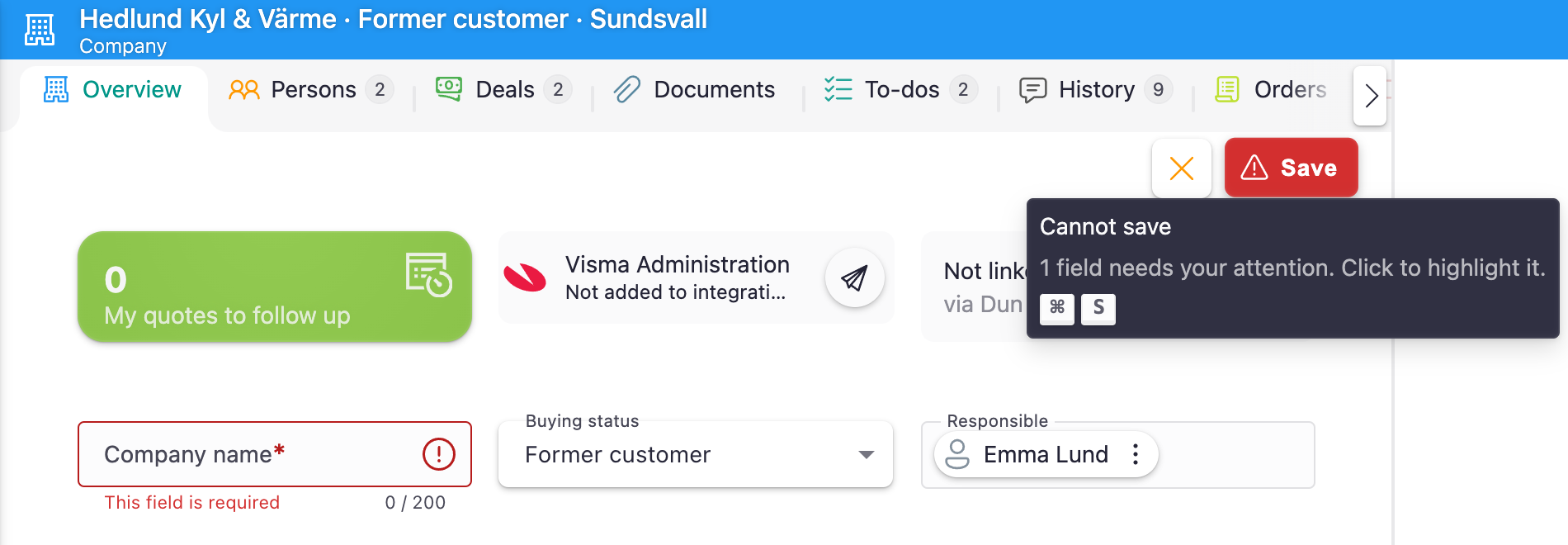
What it does:
- Pressing Save on an invalid form marks every invalid field and opens collapsed sections that contain one.
- The button shakes so the user can see the click was received.
- Fixing the fields or discarding the changes returns the form to normal.
How to enable:
Available to all users after the upgrade, nothing to set up.
🧪 Beta: Show Each Record Only the Fields That Apply to It
Administrators can decide when a section, field, widget or tab on a card is shown, when a field is read-only and when it is required, from conditions on the record and the user. Start pages and items in the browse menu can be shown to certain groups only. This feature is in beta and is off by default.
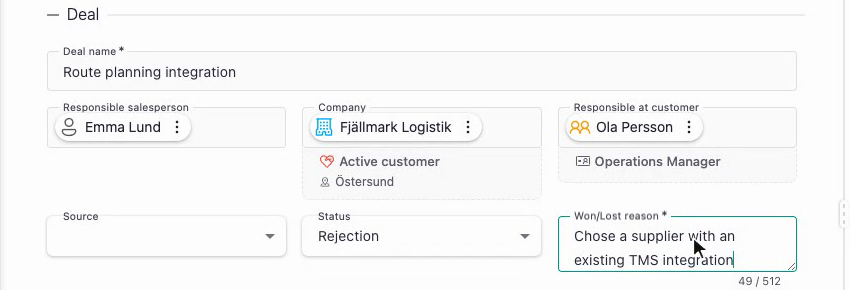
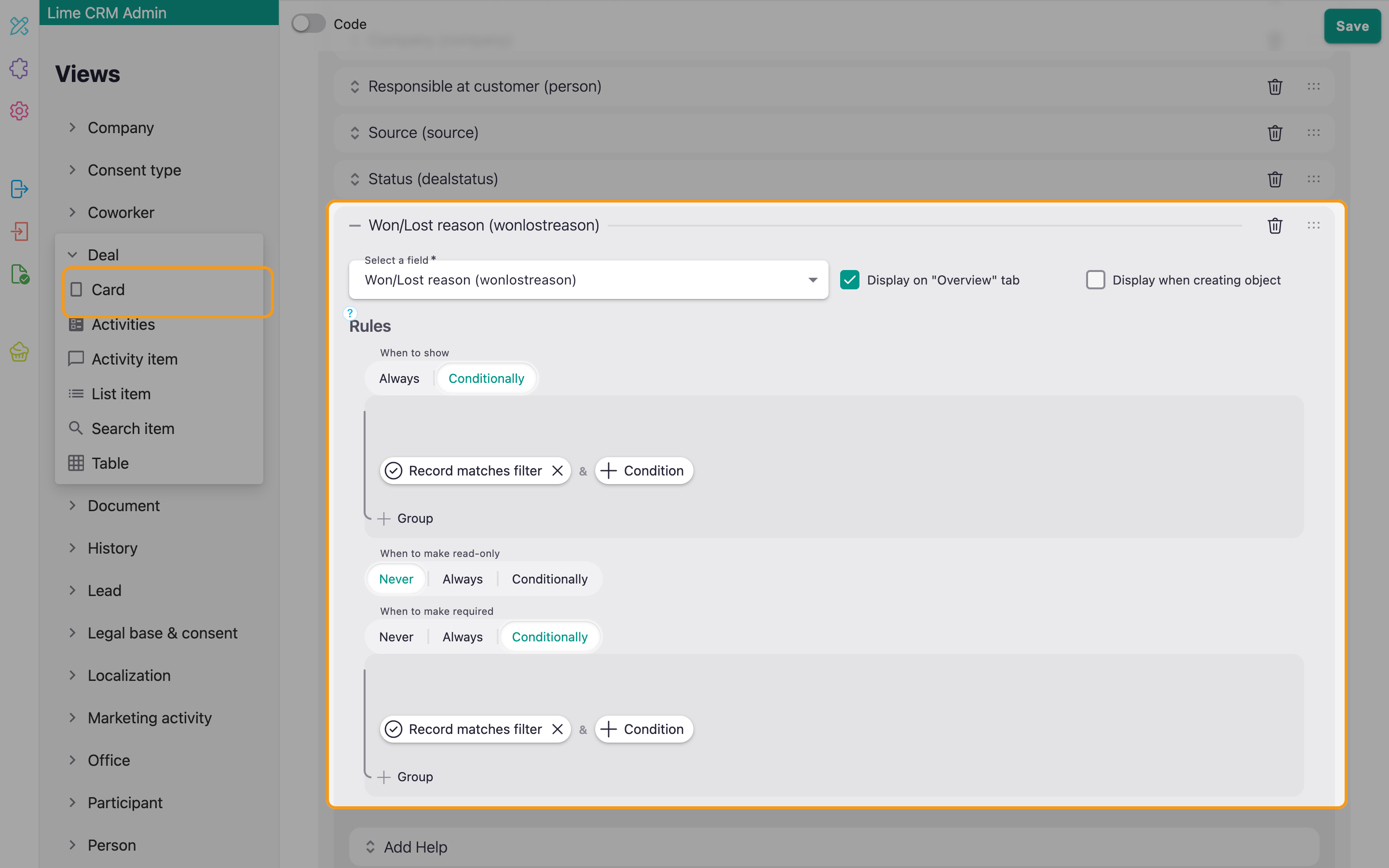
What it does:
- Each section, field, widget and tab has When to show, set to Always or Conditionally. Fields also have When to make read-only and When to make required, set to Never, Always or Conditionally.
- Conditions such as Record matches filter and Member of group can be combined in groups with All of the following, Any of the following, None of the following and Not all of the following.
- Rules are checked while the record is edited, so a field appears or becomes required as soon as the status changes, before the record is saved.
- Existing Read-only and Required checkboxes on card fields become rules (Always). Turning the switch off again gives the checkboxes back with their values.
- Rules only change what the web client shows. The API, imports and integrations do not apply them; use policies for access control.
How to enable:
Set the feature switch useRuleVisibility to true for the application in %programdata%\Lundalogik\LIME Pro Server\application_config.yaml (create the file if it does not exist):
Then open the card configuration of a limetype in Lime Admin and set the rules on its sections, fields, widgets and tabs.
Read more: Rules
🧪 Beta: Let Team Leads Share Filter Sets and Layouts with Everyone
Administrators can choose which groups may publish filter sets and table layouts for everyone. Until now, only administrators could. This feature is in beta and is off by default.
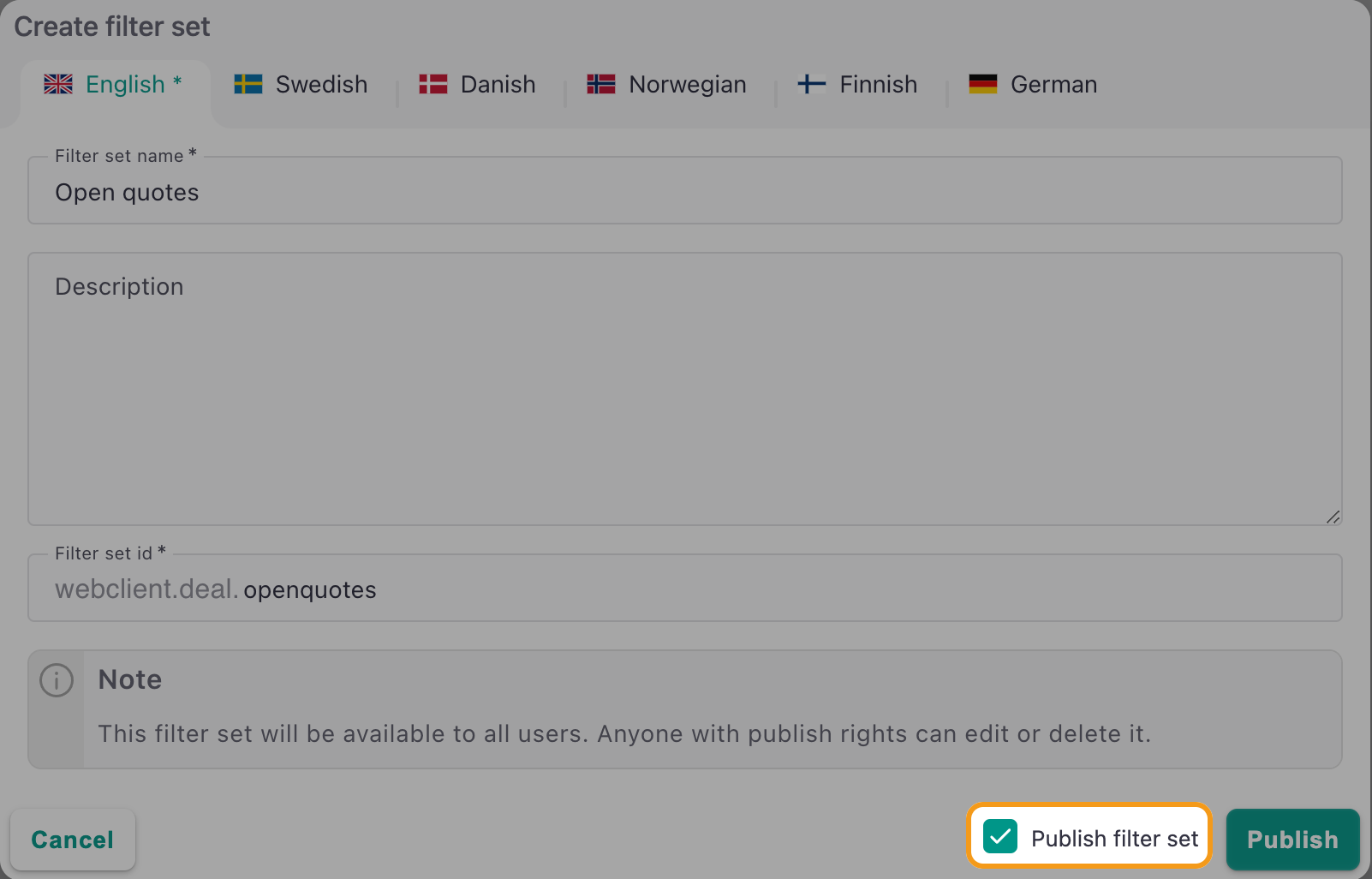
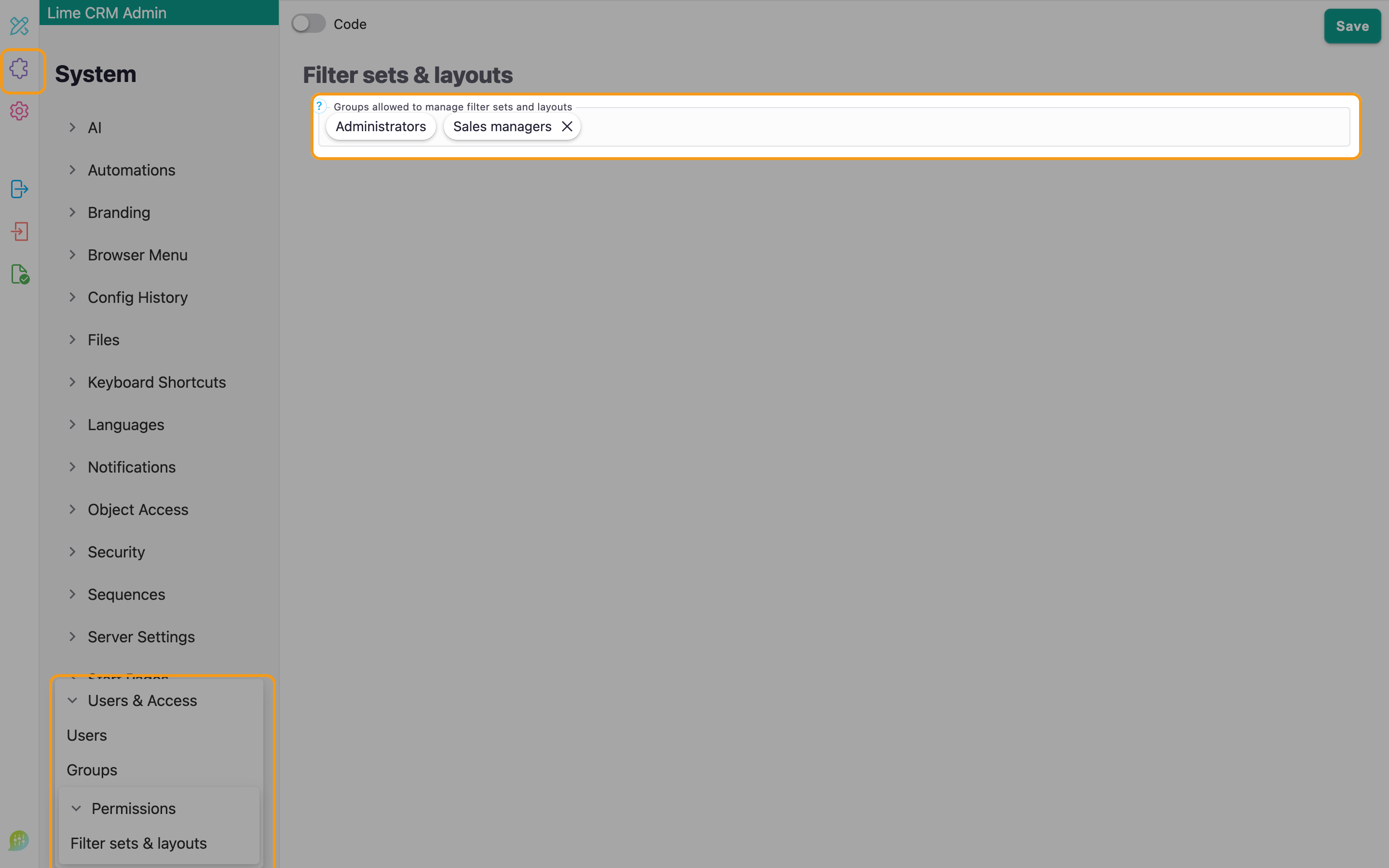
What it does:
- Members of the chosen groups can publish, update and delete filter sets and layouts. The administrator group always has the right.
- A new filter set is private until Publish filter set is ticked.
- Layouts have Save for myself and Publish. Administrators can keep their own layouts without changing what everyone else sees.
- Publishing a layout that uses a private filter set publishes that filter set too, and the dialog names it.
How to enable:
Set the feature switch usePublishFilterSet to true for the application in %programdata%\Lundalogik\LIME Pro Server\application_config.yaml (create the file if it does not exist):
Then open Lime Admin, System > Users & Access > Permissions > Filter sets & layouts and add the groups under Groups allowed to manage filter sets and layouts.
Read more: Publishing Layouts for all users
📝 Find a Todo's Related History Under Activities (Turn On Now)
On a todo, the History tab has listed the history of the todo's company, person and deal. The tab was a workaround: the todo's history relation returned the history of other records. With the feature switch on, the Activities tab of a todo lists that history instead, with each related record as its own source, and the History tab can be removed from the todo card.
The switch is off in this release and becomes the standard behaviour in a later one. Turn it on now, in agreement with the customer, so that users know in advance that the tab goes away and where the history is found.
What changes when the switch is on:
- The default Activities feed of a todo lists the history of each related record that has a history relation, such as the company, person and deal.
- The todo's History relation works like any other relation and returns only history attached to the todo itself. If the todo limetype has no history relation of its own, the History tab gives an error until it is removed.
- Integrations and reports that read a todo's history through the API get only the todo's own history.
- Activities feeds on todos that have been configured in Lime Admin keep their configured sources.
How to enable:
- Agree on a date with the customer. Tell the users that the History tab on todos goes away and that the history is found under Activities, and check integrations that read a todo's history.
-
Set the feature switch
useTodoActivitiesRelatedHistorytotruefor the application in%programdata%\Lundalogik\LIME Pro Server\application_config.yaml(create the file if it does not exist): -
Remove the History tab from the todo card in Lime Admin.
🗂️ Other Notable Additions
- Paginated lists: list views and the related objects widget show pages instead of loading more rows on demand. The ··· in the page list opens a field for jumping to any page.
- Automations: every save is kept; Show history in the automations menu lists earlier versions, which can be restored. A search bar filters the automations, and Change execution order lets rows be dragged into a new order.
- Empty sliders: a slider without a value shows as empty instead of at its lowest value, and optional sliders have a button to clear the value. Slider settings in Lime Admin that were never set now show as empty; values already set are unchanged.
- File fields: each file field can limit the accepted file types and resize images on upload, in the card configuration in Lime Admin. See Accepted File Types and Resize & Optimize Images.
- Text editor: Tab, Enter and Backspace work inside lists, lists can be converted and wrapped from the menu, and tables show their borders while editing.
- Charts: chart items are sized as shares of the whole, and the percentage can be hidden in tooltips. Existing charts can look different.
- Login settings: Entra ID and OpenID logins have settings for the authority base URL, a logout hint, the login prompt and a metadata URL. See Login with Entra ID and Login with OpenID.
- Audit and access logs: every authenticated request is written to the
lime.audit(logins) orlime.accesslog, with the path, user agent, impersonation and the reason for a failure. Granting and removing administrator rights is logged, and refused access is logged with the reason. - Accessibility: screen readers get names, roles and states for selects, input fields, pickers, chips, checkboxes, sliders, switches, the text editor, the dock and popups. Tab leaves a field and Esc closes its list.
- Keyboard: Ctrl+O opens the browse menu.
- Phones: the expanded dock shows labels below its icons in the mobile layout, and select options can show an icon and a secondary text.
- Lime Admin: config descriptions are shown as help text, and Validate all lists configs that were never saved.
- Activity feed: the filter chips above the feed are translated, with All set apart.
- Download to Excel and CSV: values that look like spreadsheet formulas are neutralised, and every CSV field is quoted.
⚠️ Before Upgrading
- Search index: plan a search reindex for each application after the upgrade (
limefu search index --application <application name>). Exact matching on relations and option values, and the new ranking on older indexes, need it. See Find the Record You Search For above. - Session cookie: over https the session cookie is now named
__Host-session. Users log in once more after the upgrade. Update proxy or firewall rules that refer to the cookie by name. - Requests from other sites: POST requests from another origin that rely on the session cookie are rejected. Browser-based integrations hosted on another address must authenticate with an API key instead.
- File names: uploads are rejected when the file name contains control or invisible characters, path separators, or ends with a dot or a space. Check integrations that create files.
- OpenID and Entra ID: changing
authority_base_urlnow requires the client secret to be entered again. - Interactive login: only standard, administration, test and integration users can log in to the web client; other user types, such as service and API users, are refused. When Entra ID or OpenID is configured, password reset is closed and password login through the session API is refused. Check users and integrations that log in with a password.
- Sorting: the feature switches
useIdDefaultSortinganduseSecondarySidepanelare removed and their behaviour is always on. Remove them fromapplication_config.yaml; an installation that setuseIdDefaultSorting: falsenow always sorts with the record id as tie-breaker. - Schema validation: applying a database schema now fails when a limetype or field refers to an unknown policy, when names differ only by case, when a field name collides with a built-in column, or when a limetype and field name together are too long. Check custom schemas before the upgrade.
- Session backend: the
filesystemsession backend is removed. If aconfig.ymlnames it, remove that setting.
Closed bugs
Layouts & Table Views
- The action bar no longer covers the aggregation row of a table view, also in split view, and a collapsed action bar is wide enough for an action with a label.
- Aggregates on a relation's display value work again.
- Filtered aggregate columns are kept in explorer widgets.
- Two layout saves at the same time no longer collide.
- Sorting on a date and time column gives the same order every time when several records have the same value.
- Records that no longer match the view after a change are deselected.
- A table in an explorer widget no longer shows pagination when there is only one page.
Filter Sets
- Filter sets that contain a negation are kept on a card.
- The context filter is kept when the filter set changes.
- Filters on relations match the same way whether or not the related record is cached.
- The property filter no longer shows its title as a browser tooltip.
- Add to mailing is no longer offered on the All filter.
- The query builder shows option texts instead of their keys.
- Deleting a filter set also deletes the layouts attached to it.
- Filters and sorting check that the user may read the properties used; filter sets that depend on a property the user may not read are hidden for that user.
Activity Feed
- A note stays in the editor when saving it fails, instead of disappearing.
- A feed item whose author has been deleted loads instead of giving a server error.
- The creator's name is shown for items created by a user without a coworker record.
- The feed no longer breaks when the coworker limetype is missing.
- The feed fills the width of its column and of the split view, and no longer jumps while document thumbnails load.
- Images in notes are no longer squeezed by a fixed height.
- Yes/no values are shown correctly in feed items.
- A new note is attached to the record it was written on.
File Viewer & Live Docs
- The file viewer shows one download button, and its buttons no longer overlap.
- Links to edit a file check that the user may access the record.
- File types given as extensions are matched against the file name (#4183).
Text & Code Editors
- The cursor stays in place when the editor gets focus back.
- Clearing a value from code is saved.
- Links to headings in Markdown work (#4135).
- Characters such as
&are no longer shown as&in text and form fields. - Pasting a table into a table cell no longer loses content.
- The editor is no longer taller than the visible screen on phones.
- The link menu is translated, and the link field gets focus when the menu opens.
- Nested numbered lists no longer show bullets, and tables with set column widths are shown.
General Usability
- Clicking in a list selects the row under the pointer.
- Collapsed sections are skipped when moving with Tab.
- A card opens on its first tab when the tab last used no longer exists.
- Messages about saving or deleting use the display name of the limetype instead of its database name.
- Optional choice fields and fields with a default value can be cleared.
- Option fields that have not been touched are no longer marked as invalid.
- Long titles are no longer cut in the middle of an emoji.
- A clicked notification stays read, and the badge in the dock updates after marking notifications as read.
- Typing in a select jumps to the matching option (#4192, #4194).
- The dropdown of a select no longer covers the helper text and follows the field when it moves (#4290).
- The date picker follows regional language settings, and its today tooltip is translated.
- Merge codes with the value 0 or an empty value are filled in (#4162).
- On iPad and phones, card headers no longer sit under the status bar, and the dock and messages stay inside the screen (#4260).
- The side panel handle is easier to drag on touch screens.
- The close button of the summary popover can always be clicked.
- Wide content stays inside a notification.
- Popovers have a clearer edge and render better in dark mode.
- Tab bars keep their scroll arrows up to date and keep the focus where it was (#3948).
- Dependent fields with nothing to choose from are hidden instead of showing an empty list.
- An upload that fails shows an error message.
- Checkboxes no longer fail to show (#4190).
- The label of the attach action shows its full text.
Search
- Search no longer finds records through properties the user may not read.
- Each word in a search is matched against the searched properties.
- Option values are matched in the user's language.
- Hit counts are correct for limetypes with special characters in their names.
- Results from an earlier search no longer replace newer ones, and each search runs once.
- The global search makes room for the side panel only while the panel is open.
- Empty number fields are indexed as empty.
- The name of a related record is kept up to date in search, also when only its owner or group may read it.
- A reindex cleans up only the application's own old indexes.
Access Rights
- Removing a relation needs the right to update the record, not to delete it.
- Access to records that are reached through a relation is checked in every case.
- Access to a deleted file is denied.
User Management & Login
- A user deactivated through SCIM or in Lime CRM is logged out and can no longer use an existing session.
- Changing a user's groups in Lime Admin no longer removes the user from dynamic groups.
- A failed login no longer shows whether the user exists.
- Password reset is closed when login goes through Entra ID or OpenID.
- Logging out of Entra ID or OpenID returns to the right page.
- The selected user types are shown in Lime Admin.
- Login settings are reloaded after saving, and the expiry date of the client secret is shown correctly.
- A malformed password hash no longer makes the login fail with an error.
- Password reset is refused for users who cannot log in with a password.
Lime Admin
- Validate all skips read-only fields.
- The Import page says why an import failed.
- A command id typed in the component picker is accepted with Enter.
- A new field with a default value appears in a form after a schema change.
- The query builder keeps a relation value when another property is picked.
- File migration history shows days in long durations.
API & Integrations
- Deleting an API key with
limefuends the sessions that used it. - File names with special characters are escaped in downloads and storage links.
- Files with upper-case extensions are routed to SharePoint like lower-case ones.
- The API documentation returns 404 for an unknown specification and follows the user's language.
- A file can only be attached to the file field it was uploaded for.
- Bulk update checks that the user may update each record.
- Errors from Download (xlsx) and Download (csv) no longer include internal details.
Platform Reliability
- The browser no longer runs out of memory on pages where a component kept resizing itself.
- Cards, info tiles and shortcuts no longer leave event listeners behind after hovering (#4282).
- Database transactions are closed after use, and the server reconnects when a database connection has been closed.
- Related records are refreshed after a save, so their changes are shown straight away.
- A failed change of a field's length no longer leaves part of the change behind.
- Option fields get an empty default when a translation is missing.
- Database update procedures print debug output only when asked to.
- Scheduled tasks are registered again after a temporary failure.
- A record that is still a draft can be deleted.
- Errors during database cleanup are reported, and cleanup removes records of files that no longer exist in storage.
- A dot in the database name no longer breaks the message queue.
- Database cleanup can run during working hours.
- Schemas with a relation from a limetype to itself can be applied.
- A failed write to the import log no longer hides the real import error.