Rules
A rule is a question about the current record and the current user, and it answers true or false. What that answer changes depends on where you set the rule.
This lets a card carry everything it needs without showing everything at once. Fields that hold data from the business system only need to be on screen for records that are actually synced with it. For when to reach for a rule and when to solve the problem another way, see Designing with Rules.
Three things to keep apart
| The question | The answer | |
|---|---|---|
| What carries the rule | Which part of the client is affected? | A section, a field, an action |
| What the rule tests | What does the outcome depend on? | A built-in rule, or one you write yourself |
| What the rule controls | What happens when it is true? | Visibility, or how a field may be edited |
These three change independently of each other: new surfaces gain rule support over time, and new rule types can be registered by a plugin. Keeping them apart is what makes the rest of this documentation navigable.
What can carry a rule
| Surface | Configured in | Context | Effect |
|---|---|---|---|
| Section on a card | Card view | A record | Visibility |
| Field on a card | Card view | A record | Visibility, Read-only, Required |
| Widget on a card | Card view | A record | Visibility |
| Tab on a card | Card view | A record | Visibility |
| Promoted action, in the action bar | General view | A record | Visibility |
Un-promoted action, in the ⋮ menu |
General view | A record | Visibility |
| Bulk action in a table | Table view | None | Visibility |
| Start page, the page as a whole | Start pages | None | Visibility |
| Section in the browse menu | Browse menu | None | Visibility |
| Item in the browse menu | Browse menu | None | Visibility |
| Info tile on a start page | Start pages | A value | Reduce presence |
The Context column decides which rules you can choose. Every rule needs something to look at, and it is only offered where that thing exists — see Built-in Rules. Member of group needs nothing and is available everywhere.
A bulk action has no record because it runs across a selection rather than a single record. A start page and the browse menu are not shown in the context of a record at all. An info tile has no record either, but it does have the figure it displays, which is what its two value rules test.
Prefer the larger unit: the section over the field, the browse menu section over the item, the start page over what is on it. See Prefer the larger unit for why.
What a rule controls
Most rules control visibility: if the rule is true the item is shown, if false it is not.
A field on a card can carry two effects beyond that. Read-only makes the field uneditable while its rule is true, and Required makes it mandatory. Both sit beside the visibility rule in the same editor. They are specific to fields — a section, tab, widget or action only decides whether to show itself, so it carries a visibility rule alone.
Each effect has its own rule, and the three are independent. A field can be shown conditionally and read-only conditionally on different grounds.
An info tile has a different effect again, Reduce presence, which dims the tile rather than hiding it. That difference is deliberate. A widget carries the layout, so removing one would rearrange the page around it — dimming lets a tile recede when it has nothing interesting to say, without moving anything.
The configuration is keyed by the effect — visibility, readonly, required — rather than naming it inside the rule, so further effects can be added without changing the shape of a rule itself. An info tile is the exception: it keeps its one rule in a property of its own, reducedPresenceRule.
Building a rule
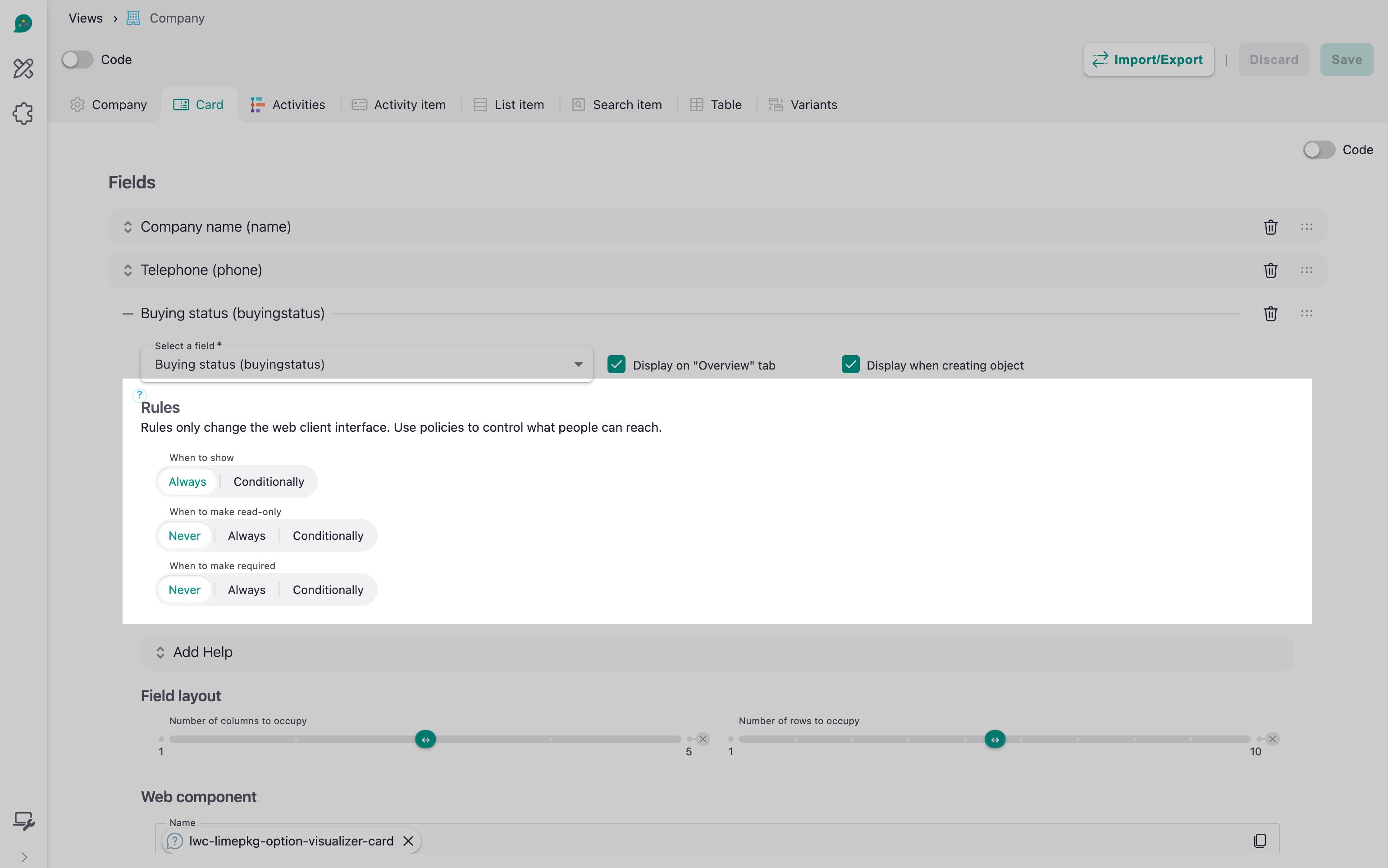
Navigate to Lime Admin > Views and pick the limetype. Sections, fields and tabs are on the Card tab, actions on the tab named after the limetype, and bulk actions on Table. Select the item you want to control. Below its contents you will find Rules, and under that When to show. A field has two more, When to make read-only and When to make required.
Each one starts on a mode rather than on an empty rule:
- Always — unconditional. This is where When to show starts, which is why an item with no rule is simply visible.
- Never — the opposite, offered for read-only and required only. This is where both of them start, so a field is editable and optional until you say otherwise.
- Conditionally — build a rule. The rest of this section is about that.
Choose Conditionally and the rule builder opens. + Condition adds a rule from the ones available on this surface, and + Group adds a nested group, for mixed logic such as all of A and B, and any of C or D.
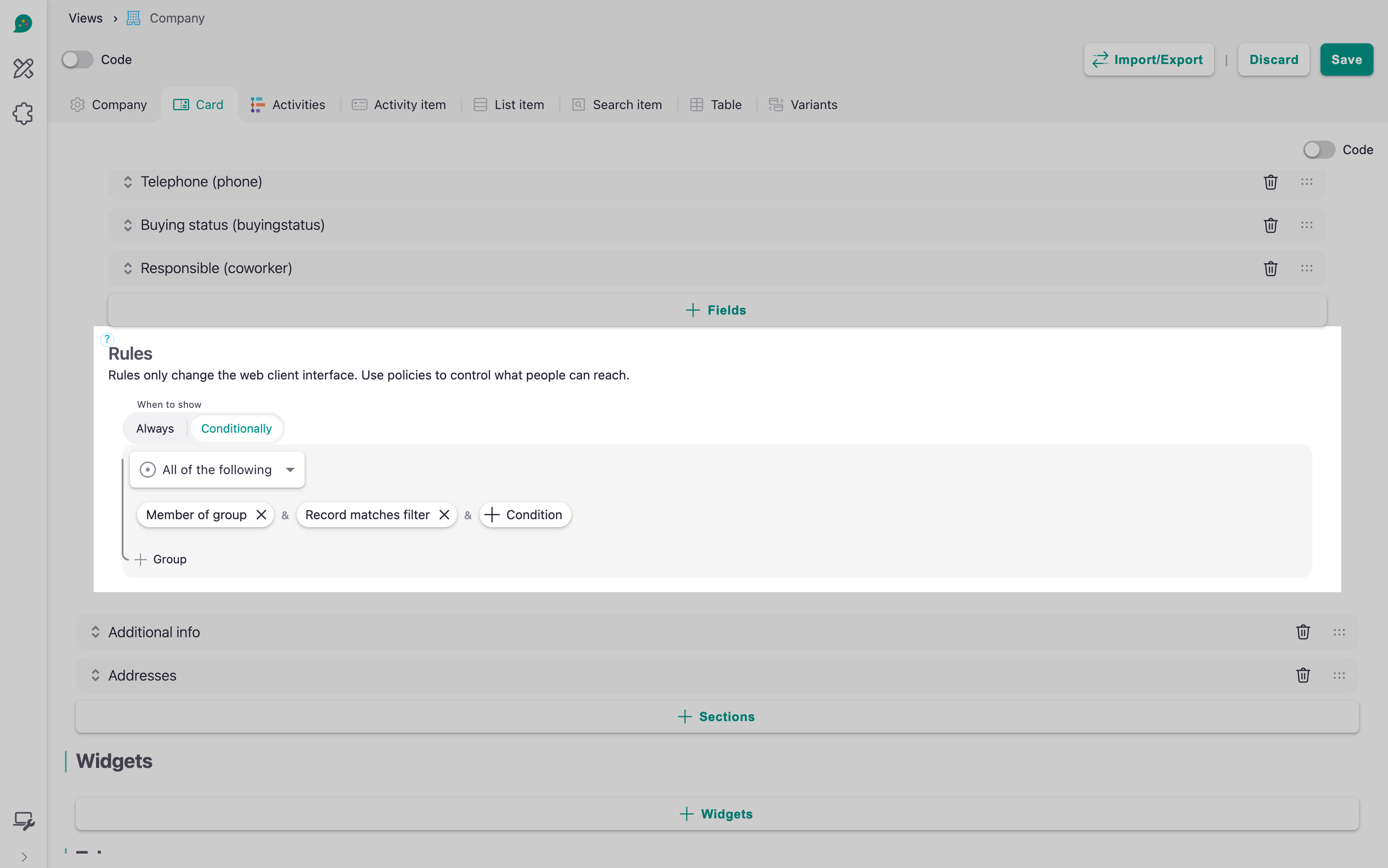
Once a group holds more than one condition, it shows how they combine:
- All of the following — every condition must be met.
- Any of the following — at least one must be met.
- Not all of the following — at least one must not be met.
- None of the following — no condition may be met.
The last two are the first two inverted, so a group needs no separate switch to negate it. To invert a single condition, use the Negate toggle in its settings.
Click a condition to open its settings. See Built-in Rules for what each one tests.
Two things to check before you save:
- Look at the item in both states, back to back. Most problems only show up in the transition.
- Look at it as a user who does not know the rule exists.
Warning
Changes happen for the end user in real time, with no delay and no animation. The user does not have to save the record for a section to appear or disappear.
In the config
The rule builder writes the configuration for you. This is what it saves:
"rules": {
    "visibility": {
        "type": "ref",
        "id": "limetech.limeobject-matches-filter",
        "args": {
            "expression": { "key": "done", "op": "=", "exp": true }
        }
    }
}
visibilitynames the effect the rule controls.typeisreffor a single rule. A group is saved asallorany, with its conditions in aruleslist, and anything negated is wrapped innot, with the rule it inverts underrule. That is how Not all of the following, None of the following, Negate and Never are stored.idnames the rule, prefixed with the package that provides it —limetech.for the built-in ones.argsis the rule's input. Forlimeobject-matches-filterthat is a filter expression, underexpression.
A field's two other effects are further keys in the same object:
"rules": {
    "readonly": {
        "type": "ref",
        "id": "limetech.limeobject-matches-filter",
        "args": {
            "expression": { "key": "status", "op": "=", "exp": "closed" }
        }
    },
    "required": { "type": "ref", "id": "limetech.always" }
}
limetech.always is what the Always mode writes, and it is how an unconditional read-only or required field is stored. Never writes the same rule negated.
An item with no rule simply has no rules field, and the editor reads that back as the starting mode.
Info
Older configurations put a visibility field directly on the item, holding conditionID and conditionParams. A field's Read-only and Required checkboxes were plain booleans on the field itself. Both are migrated automatically when the feature flag is enabled — the checkboxes become always rules under the matching key — so you do not need to convert anything by hand.
Under the hood
A rule declares the context it needs and then checks it. Rules can be composed, which is what the groups in the rule builder produce, and developers can register their own.
A rule belongs to the item it is set on. There is no shared library of named rules, so a rule used in several places is configured in each of them.
Rules are evaluated in the client as the record is loaded and as values change, which is what makes a section appear the moment a status is set.