Accepted File Types
By default, a file field in Lime CRM accepts any file. You can restrict a field to the file types it should actually receive — for example only images for a profile picture, or only PDFs for a signed document. This guides end users toward the right files and helps keep unwanted formats out of the CRM.
Where to find the settings
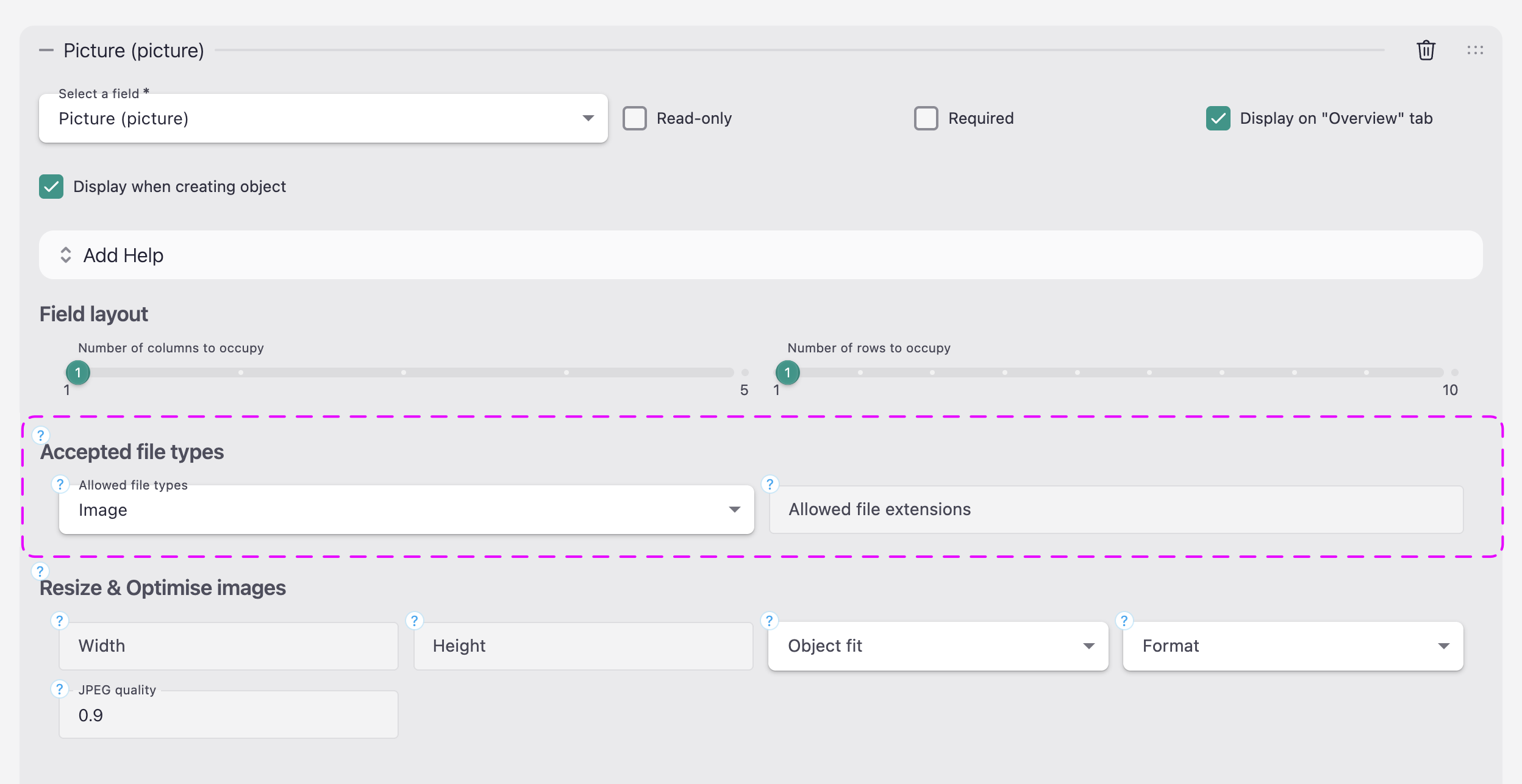
The setting lives on file fields (properties of type file) in a limetype's object card configuration, in Lime Admin. Open the card configuration, expand a file field under Fields, and you'll find an Accepted file types section (just above Resize & Optimize images).
It has two fields, which combine into a single allow-list:
- Allowed file types — a multi-select of common categories and formats.
- Allowed file extensions — an optional comma-separated free-text field for anything not in the list.
Leave the whole section blank to accept any file (the default).
How the allow-list works
This is an additive allow-list (OR, never AND)
Every choice only ever widens what the picker offers — the options combine with OR. A choice can never narrow what another choice allows.
So selecting Image and also adding .jpg does not restrict the field to JPEGs — it still allows all images (the extension is pure redundancy). There is no way to express "images, but only JPG" — and no need to: "only JPG and PNG" is simply .jpg, .png on their own, with Image left unselected.
The practical rule: pick the narrowest options that cover what you need.
- Want any image? Choose Image.
- Want only PDFs? Choose PDF.
- Want only JPG and PNG? Leave Allowed file types empty and put
.jpg, .pngin Allowed file extensions.
Allowed file types
Pick the categories the field should offer. Each option maps to one or more underlying accept specifiers. The broad categories (Image, Audio, Video) accept any file of that type via a MIME wildcard; the rest map to a fixed list of extensions:
| Option | Allows |
|---|---|
| Image | Any image (image/*) — e.g. .jpg, .png, .gif, .webp, .svg, .heic |
| Audio | Any audio (audio/*) — e.g. .mp3, .wav, .m4a, .aac, .ogg |
| Video | Any video (video/*) — e.g. .mp4, .mov, .webm, .avi |
.pdf (application/pdf) |
|
| Microsoft Office | Word (.doc, .docx), Excel (.xls, .xlsx), PowerPoint (.ppt, .pptx) |
| Apple iWork | Pages (.pages), Numbers (.numbers), Keynote (.key) |
| OpenDocument | Writer (.odt), Calc (.ods), Impress (.odp) |
| CSV & text | .csv, .txt |
.eml, .msg (saved emails) |
|
| Compressed | .zip, .7z, .rar, .tar, .gz, .bz2, .xz |
Allowed file extensions
For anything not in the list — CAD drawings, data files, and the like — list the extensions in Allowed file extensions as a comma-separated string, each starting with a dot:
Like the options above, this is additive: it adds these extensions to what's allowed, it doesn't narrow the selection.
Examples
| Goal | Allowed file types | Allowed file extensions |
|---|---|---|
| Profile picture (any image) | Image | — |
| Signed document (PDF only) | — | |
| Microsoft Office documents | Microsoft Office | — |
| Only JPG and PNG | (none) | .jpg, .png |
| CAD drawings | (none) | .dwg, .step |
As stored in the card configuration (via the code editor), a control looks like this:
{
  "property": "attachment",
  "acceptedFileTypes": {
    "types": ["microsoft-office"],
    "otherExtensions": ".csv"
  }
}
Important: this is a hint, not a security control
Accepted file types guide, they do not enforce
The accepted types are a hint the browser uses to pre-filter its file chooser. They are not a security control:
- Users can often still switch the chooser to "All files" and pick something else, and files can reach the field by other routes (drag-and-drop, APIs, imports).
- Real validation happens on the server.
To actually block file types across the whole solution — not just guide a single field — use the global file-security setting.